
Why calls may go to voicemail when Do Not Disturb or Focus is on
Overview
When your phone is in Do Not Disturb (Android) or a Focus mode (iOS, such as Do Not Disturb, Sleep, Work, or Driving), the operating system can silence incoming call notifications from the app. Your phone won't ring, and callers are sent to voicemail as if you didn't answer.
To help, the app shows a banner when your device is in one of these modes, so you know you may miss calls and message notifications. On iOS, the banner only appears when your Focus settings let the app see your Focus status. With Apple's default settings, it works automatically.
The Focus mode banner
When your device is in Do Not Disturb or a Focus mode, a Do Not Disturb is active banner appears at the top of the Chats and Calls screens. It's a reminder that incoming calls may not ring and may go straight to voicemail. Tap Learn more for details, or tap X to dismiss the banner.
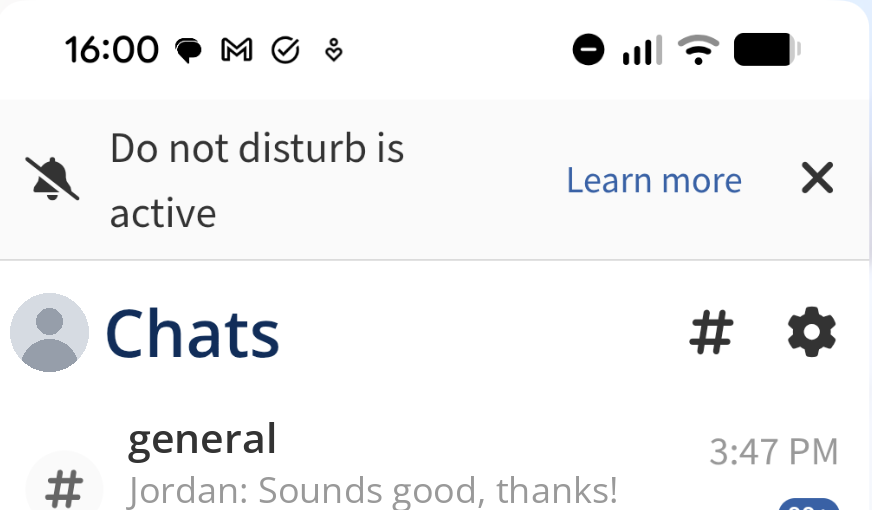
On iOS, the first time this feature runs, iOS asks whether the app can access your Focus status. Tap Allow. Without this permission, the app can't tell when a Focus mode is on.
If you tapped Don't Allow earlier, go to Settings > [app name] > Focus and turn it on.
Settings the banner needs
Two iOS settings must stay on for the banner to appear. Both are on by default. If either one has been turned off, iOS reports that no Focus mode is active, so the app can't show the banner.
The app can't turn these settings on for you or detect when they're off. If you don't see the banner while a Focus mode is active, check these two settings first.
Keep calls ringing during a Focus mode (iOS)
To receive calls while a Focus mode is on, add the app to that Focus mode's allowed apps:
Open Settings > Focus and tap the Focus mode you use (e.g. Do Not Disturb).
Under Allow Notifications, tap Apps.
Tap Add, select the app, and tap Done.
Repeat for each Focus mode you want calls to ring through.
Otherwise, turn off the Focus mode from Control Center when you're expecting calls.
Troubleshooting
My phone didn't ring, and the caller reached voicemail. Check whether a Focus mode was on. Swipe down to open Control Center; an active Focus shows its name and icon. Scheduled Focus modes (like Sleep) can turn on automatically.
A Focus mode is on, but I don't see the banner. Confirm you allowed the app to access your Focus status, then check that Share Across Devices and Share Focus Status are both on (see Settings the banner needs).
I want calls to ring even in Focus mode. Add the app to the Focus mode's allowed apps (see Keep calls ringing during a Focus mode).