
Before a meeting
Guests or those joining from a calendar link, for example, will see a preview of their video before joining the meeting. On the bottom left of your self-view, click 'Background'

- To completely blur your background, click Blur background
 .
. - To select a pre-uploaded background, click a background.
- To add your own custom background, click +.
The suggested minimum resolution for the background image is 1280 pixels by 720 pixels. The image will be automatically resized if it
During a meeting
Click or tap 'Backgrounds & effects' in the 'More' menu on the left-hand side of the meeting room.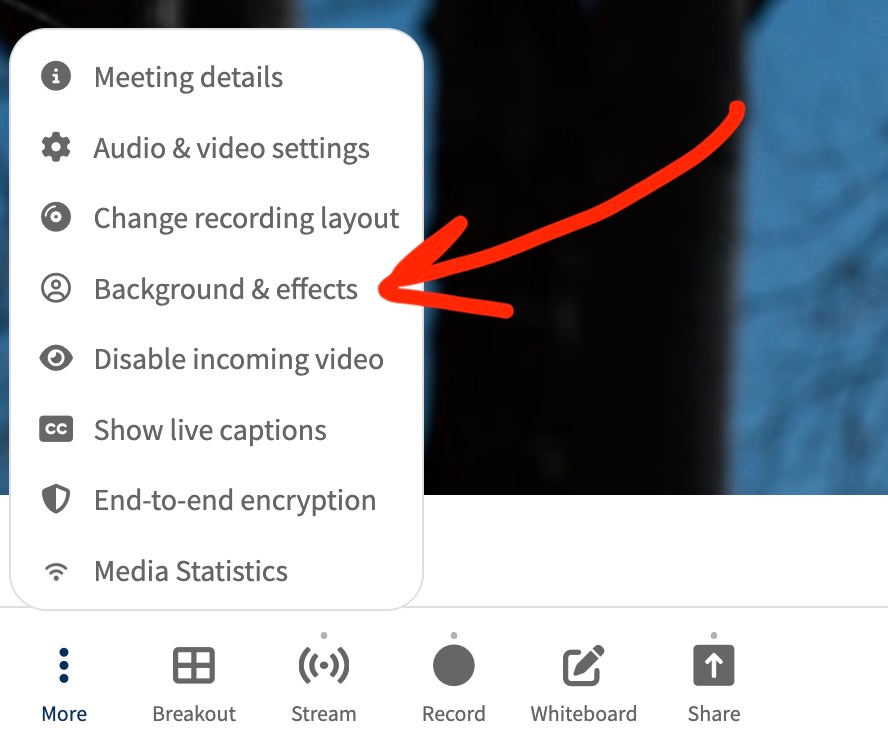
- To completely blur your background, click Blur background.
- To select a pre-uploaded background, click a background.
- To add your own custom background, click +.
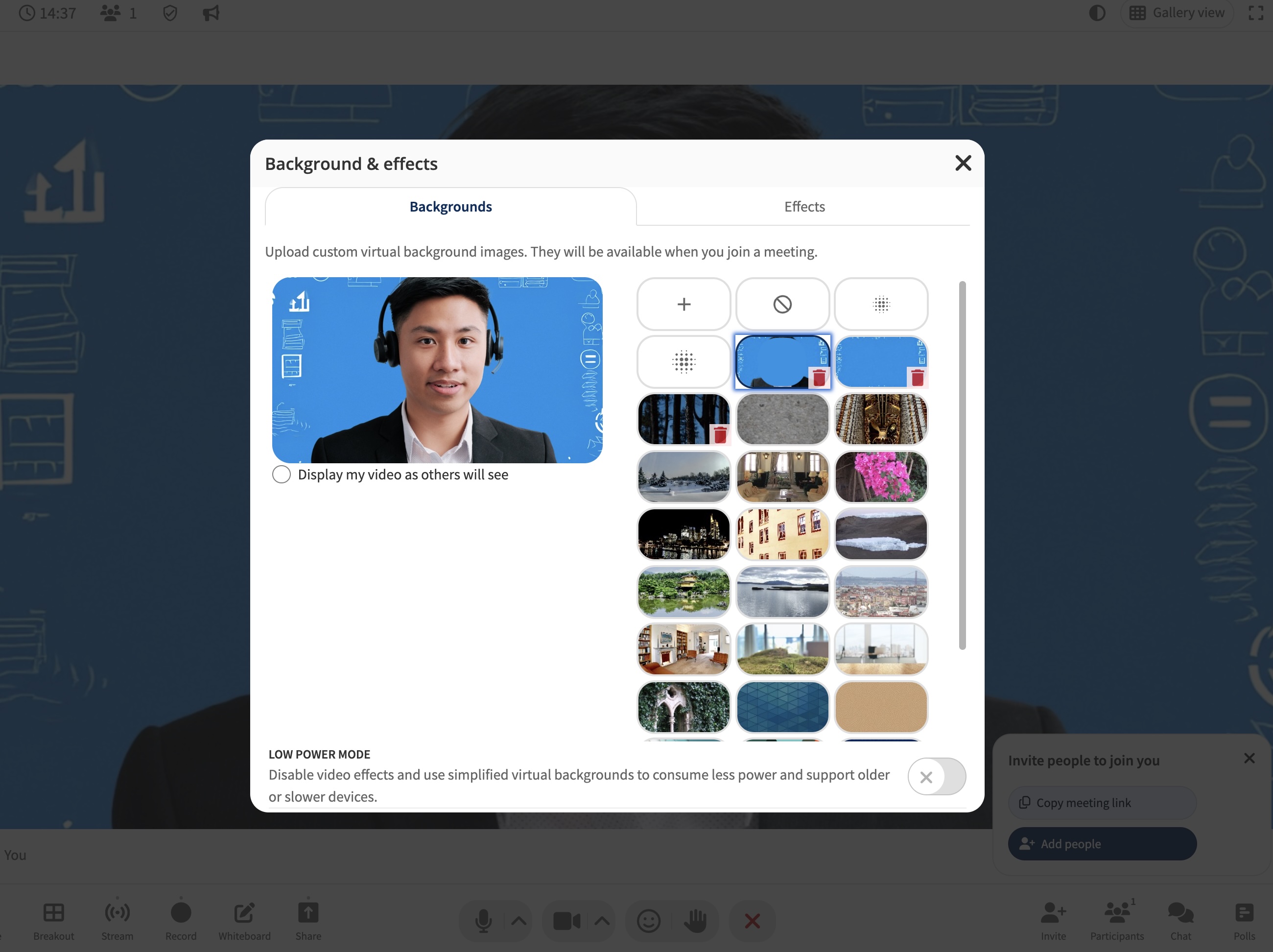
Select the 'Effects' tab to adjust your video appearance.
Effects include:
- Low light correction – Brightens dim lighting
- Color correction – Adjusts warmth and balance
- Portrait touch-up – Smooths appearance naturally
- Video enhancer – Sharpens video for a clearer look
- Smart zoom – Keeps you centered on screen
Virtual Background Specifications
The file requirements for Images are as follows:
- Size: 500KB to 1MB recommended, larger files may decrease performance.
- Dimensions: 1920 x 1080 pixels (16:9 aspect ratio) recommended. Minimum 1280 x 720 pixels
- Formats: JPG/JPEG or PNG (PNG supports transparency)
Note: Virtual backgrounds are not currently available on iOS devices (iPhone/iPad)
Tip: Use Low Power Mode to temporarily disable effects and save resources. Note that low power mode will automatically be enabled where a user’s hardware and/or network do not support this feature.